

 2 weeks ago
7
2 weeks ago
7
PROTECT YOURSELF with Orgo-Life® QUANTUM TECHNOLOGY
Orgo-Life the new way to the future Advertising by AdpathwayDownloading a new game or learning tool takes seconds, but unvetted software can expose children to privacy violations, inappropriate content, or unexpected financial charges. Running systematic app safety checks for parents before clicking install ensures your child’s digital footprint remains secure, private, and age-appropriate.
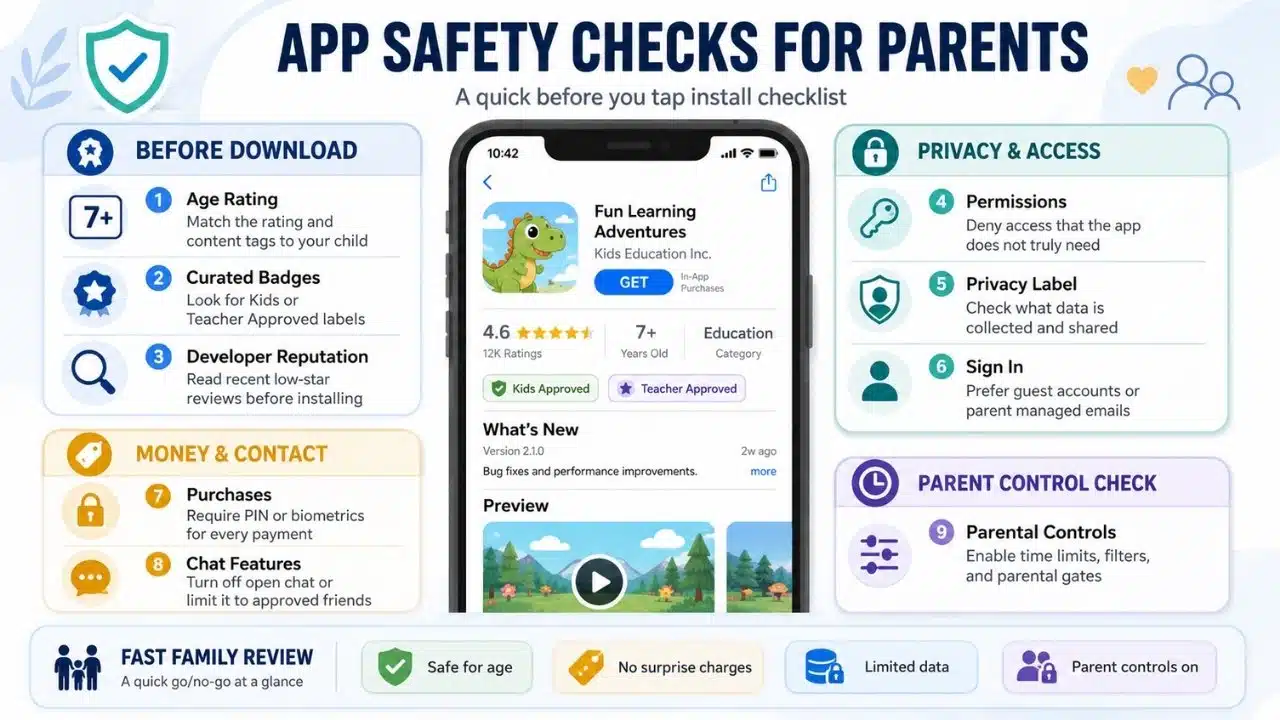
9 App Safety Checks for Parents
1. Verify Store Age Ratings and Content Descriptors
Check the official age ratings provided by the Apple App Store (e.g., 4+, 9+, 12+) or Google Play Store (ESRB/PEGI ratings). Look beyond the numerical age to read the specific content descriptors, such as mild cartoon violence, simulated gambling, or user-generated content warnings.
2. Audit Excessive Device Permission Requests
Inspect what hardware features the application requests upon installation. A simple offline puzzle game does not need access to your device’s precise GPS location, contacts, or microphone. Review these settings through your phone’s privacy menu and toggle off any permissions that are not strictly necessary for core functionality.
3. Lock Down In-App Purchases and Microtransactions
Many “free-to-play” titles rely on microtransactions, loot boxes, or virtual currency packs that encourage impulse buying. Configure your device settings to require a password, PIN, or biometric check (Face ID/Fingerprint) for every single transaction to prevent surprise charges on your linked credit card.
4. Inspect In-App Communication and Open Chat Features
Unmonitored text, voice, and video chat channels in multiplayer games represent one of the highest safety risks for young users. Determine whether the application features open global chat. If it does, navigate to the internal settings to disable direct messaging, turn off voice chat, or restrict communication strictly to approved real-life friends.
 A parent supervises a child using a tablet, highlighting the importance of checking app safety before download and use.
5. Look for Teacher Approved or Curated Kids Badges
Platforms often highlight vetted software through dedicated verification programs. Look for Google Play’s “Teacher Approved” badge or Apple’s “Kids” category. These badges indicate that the app complies with strict educational standards, age-appropriate design guidelines, and transparent data practices.
6. Review Data Collection and Ad Tracking Policies
Under Federal Trade Commission guidelines and laws like COPPA compliance standards, apps designed for children under 13 must restrict commercial behavioral tracking. Review the app store’s “App Privacy” label to see if the developer collects personal identifiers, usage data, or diagnostic info for third-party advertising.
7. Check Account Creation Requirements
Avoid software that requires young children to link personal social media accounts or submit their full real name, birthdate, and personal email address. Whenever possible, sign up using a guest profile, an alias, or an account managed directly by a parent.
8. Test Built-In Parental Controls and Content Filters
Open the application before handing the device to your child to explore its internal settings. Reliable youth-oriented software should provide a password-protected parental gate, customizable screen-time limits, and options to disable external links or web browsers embedded within the app.
9. Research Developer Reputation and Review History
Take a minute to read recent user reviews, specifically filtering for 1-star and 2-star feedback. Look out for complaints regarding sudden pop-up ads, hidden subscription traps, or frequent glitches. Choosing software built by established, transparent development teams significantly reduces security risks.
What to Do Next
Take ten minutes today to review the active applications installed on your child’s primary device. Run through these nine safety checks, disable unnecessary hardware permissions, and lock down payment credentials to ensure a safe, distraction-free digital workspace.
Frequently Asked Questions (FAQs) on App Safety Checks for Parents
How often should I re-check app permissions on my child’s device?
Audit device permissions every few months or whenever an app receives a major software update. Developers occasionally add new features that request additional camera, microphone, or tracking permissions during updates.
Are free apps inherently less safe for children than paid apps?
Not always, but free apps are more likely to rely on pop-up advertisements, third-party data tracking, and aggressive in-app purchase prompts to generate revenue. Upfront paid apps often deliver a cleaner, ad-free environment.
How can I prevent my child from downloading new apps without permission?
Enable native system controls like Apple’s “Ask to Buy” feature or Google Family Link. These tools require children to send an instant permission request to a parent’s phone before any new app can be downloaded.














 English (US) ·
  French (CA) ·
  French (FR) ·